In this guide, you will learn how to setup a Firebase project in a simple HTML and JavaScript website. Firebase allows developers to easily add backend services like database, authentication, storage, and hosting without creating their own server.
This tutorial is beginner friendly and explains each step clearly so you can connect Firebase with your website in just a few minutes.
Firebase Setup Project in JavaScript and HTML
Firebase is a backend platform developed by Google. It provides powerful tools that help developers build web and mobile applications faster.
Instead of creating your own backend server, Firebase allows you to use services like authentication, database, hosting, and cloud storage directly from JavaScript.
In this tutorial we will learn how to create a Firebase project and connect it with a simple HTML and JavaScript application.
Create Firebase Project
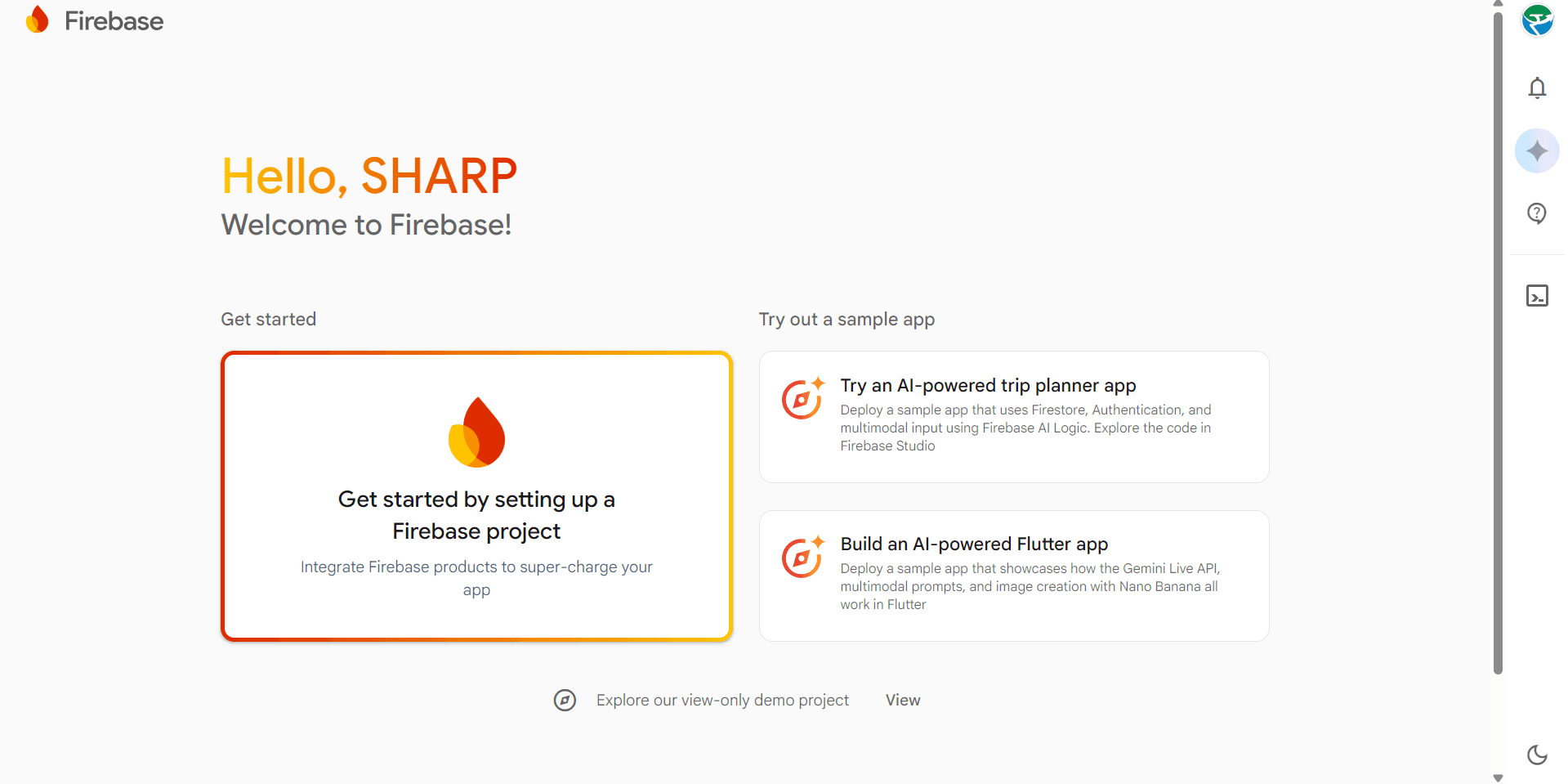
First you need to create a Firebase project from the Firebase console.
Login to your Google account in your browser
Open the Firebase Console
Click on 'Create Project'
Enter your project name
Accept Firebase terms and conditions
Click Continue
After this, Firebase will ask about Google Analytics. You can enable it if you want analytics tracking for your project.
Click Continue
Select your Analytics country
Accept Google Analytics terms
Click Create Project
Firebase will now prepare your project. This process usually takes around 30 seconds to 1 minute.
Once the setup is complete, click Continue. Your Firebase project dashboard will open.
Create Firebase Web App
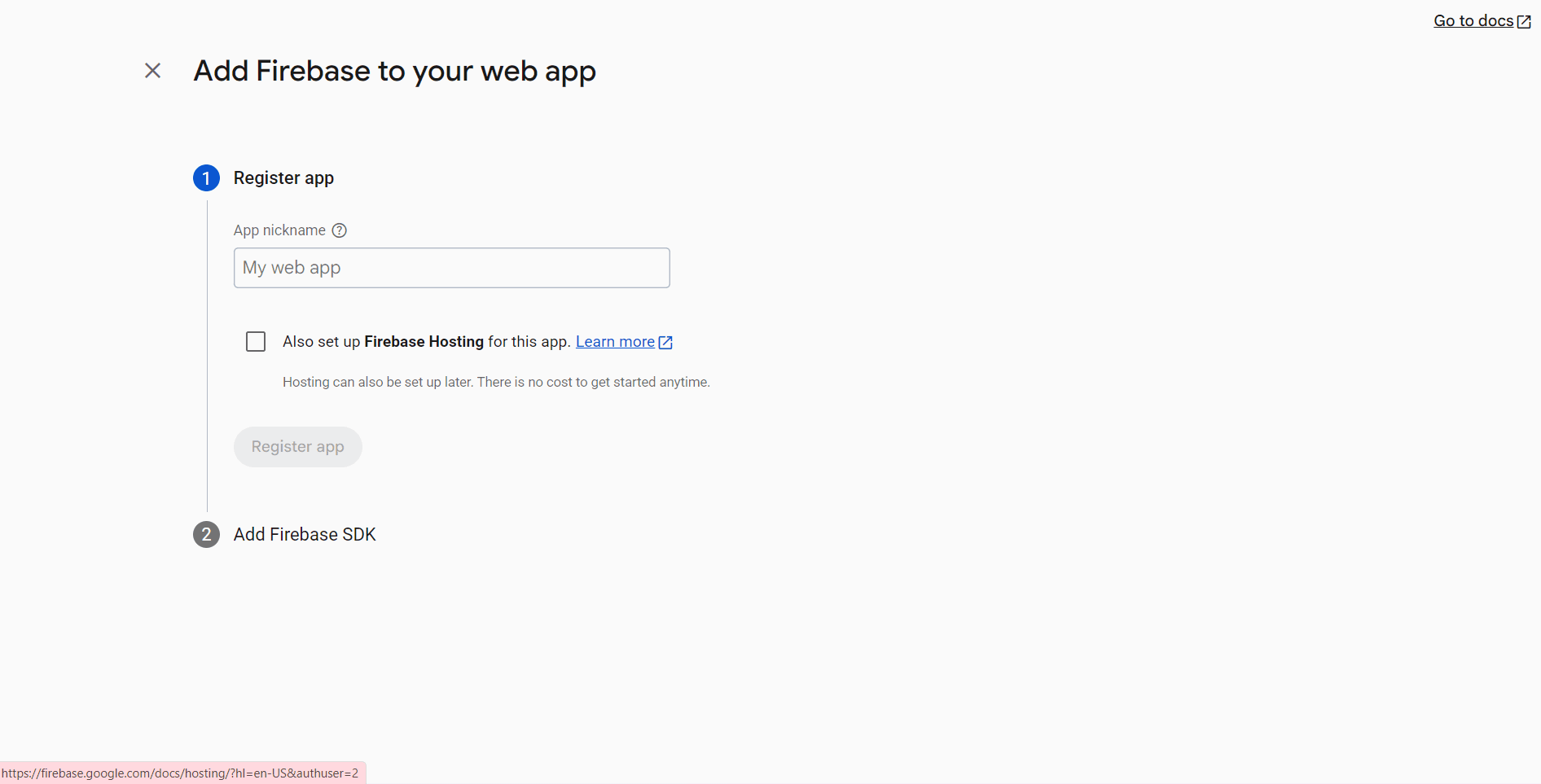
After creating the project, you need to register a web application so Firebase can connect with your website.
Open Project Settings
Go to the General tab
Scroll down to the 'Your Apps' section
Click the Web icon (</>)
Now enter your web application name and click Register App.
Firebase will generate a configuration code for your web application.
Setup Firebase in HTML and JavaScript
Now we will connect Firebase with our HTML and JavaScript files.
Create an index.html file
Create a script.js file
Copy the Firebase configuration code
Paste it inside script.js
Your Firebase configuration code will look similar to this:
import { initializeApp } from "https://www.gstatic.com/firebasejs/10.12.0/firebase-app.js";

const firebaseConfig = {
  apiKey: "YOUR_API_KEY",
  authDomain: "YOUR_PROJECT.firebaseapp.com",
  projectId: "YOUR_PROJECT_ID",
  storageBucket: "YOUR_PROJECT.appspot.com",
  messagingSenderId: "XXXXXX",
  appId: "XXXXXX"
};

const app = initializeApp(firebaseConfig);
Now connect your JavaScript file inside your HTML file using the module type.
<script type="module" src="script.js"></script>Congratulations! Your Firebase project is now successfully connected with your HTML and JavaScript website.
FAQs
Is Firebase free to use?
Yes. Firebase provides a free plan called the Spark plan. It includes many services with limited usage, which is perfect for learning and small projects.
Do I need backend knowledge to use Firebase?
No. Firebase allows frontend developers to build applications without creating a traditional backend server.
Can Firebase be used with JavaScript only?
Yes. Firebase works perfectly with plain JavaScript, React, Next.js, Angular, and many other frameworks.
Conclusion
Firebase is one of the best backend platforms for developers who want to build applications quickly without managing servers.
By following this guide, you have successfully created a Firebase project and connected it with a simple HTML and JavaScript website.
Now you can start using other Firebase services like Realtime Database, Firestore, Authentication, Storage, and Hosting to build powerful web applications.